# Using the Tickle in a Microsoft Windows Environment
**URL:** https://discourse.chair.audio/t/using-the-tickle-in-a-microsoft-windows-environment/24
**Category:** Microsoft Windows
**Created:** [October 24, 2019, 5:18pm UTC](https://discourse.chair.audio/t/using-the-tickle-in-a-microsoft-windows-environment/24 "2019-10-24T17:18:45Z")
**Posts on this page:** 2
**Page:** 1
### Author:  [@Max](https://discourse.chair.audio/u/Max)
#### Post date: [October 24, 2019, 5:18pm UTC](https://discourse.chair.audio/t/using-the-tickle-in-a-microsoft-windows-environment/24/1 "2019-10-24T17:18:46Z")
We are sorry, you’re using the least supported platform, for more performance please consider booting into Linux or using a Mac.
The Tickle is a USB 2.0 Class Compliant audio and MIDI device. Microsofts current USB Audio Class Compliant drivers are performing sub-par. There is no adaptive resampling, so you will experience clock deviation. This may result in an acceptable latency in the beginning of a session but will increase over time. To reset back to the acceptable latency you must restart the audio system. We strongly recommend the installation of the [ASIO4ALL](https://www.asio4all.org/) driver (Or at a minimum use a WASAPI driver).
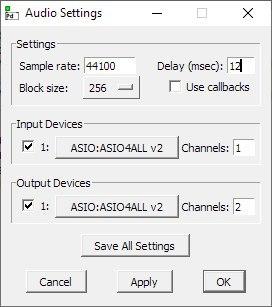
In your software selects ASIO4ALL, make sure sample rate (44100), block size (256) and channel count (1 in, _n_ out) match.
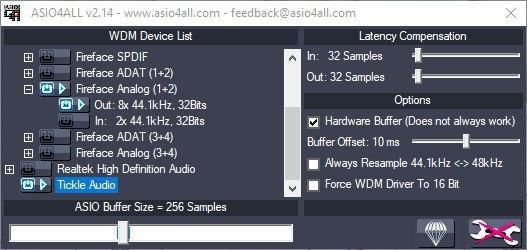
After the software acquires this ASIO4ALL device there will be a new symbol in the taskbar through which you will be able to access the ASIO4ALL settings. Select the Tickle as your input device and make sure to activate Hardware Buffer.
When the audio latency of the Tickle becomes to long, go to the preferences of your software and re-initiate the audio system there. In the case of Pd, it’s the **Apply** button in the Audio Settings dialog (image above).
Next step: [Try out the Pure Data examples](https://discourse.chair.audio/t/getting-started-with-the-tickle-and-pure-data/28).
For general recommendations how to optimize a Windows system for audio, head over to [this resource page from Steinberg Media](https://helpcenter.steinberg.de/hc/en-us/articles/360008589880-Windows-10-How-to-set-up-and-optimize-a-Digital-Audio-Workstation-DAW-).
_(Microsoft Windows is a trademark of Microsoft Corporation)_
---
### Author:  [@DiscourseAdmin](https://discourse.chair.audio/u/DiscourseAdmin)
#### Post date: [October 28, 2019, 4:05pm UTC](https://discourse.chair.audio/t/using-the-tickle-in-a-microsoft-windows-environment/24/2 "2019-10-28T16:05:51Z")